How to buy coins and subscribe with card or PayPal (through UniFans)
A step-by-step guide to getting HTranslations coins and monthly plans with a card, PayPal and more through our UniFans page: buy UniFans coins, unlock a top-up post, link your account once, and everything after that is automatic.
Card and PayPal payments for HTranslations now go through UniFans, a creator platform where we have a page. You pay UniFans, and the coins or monthly plan show up on your HTranslations account automatically. This guide walks through every step, including the one-time account link.
Prefer crypto? You can also pay us directly with crypto from the Crypto tab on the Support Us page.
The short version
- Make a free UniFans account and get some UniFans coins: with a card or PayPal by buying a voucher at AppTopUp and redeeming it in UniFans' Voucher Center, or with crypto, UnionPay, Alipay or WeChat on its Recharge page.
- On our Support Us page, open the Card & PayPal tab and press Open HTranslations Coin Topup #…. Unlock that post and pay what you want (from 50 UniFans coins).
- First time only: copy the purchase's Trans No. from your UniFans Billing History and paste it on our Support page. That links your UniFans account to your HTranslations account.
- Done. Every UniFans coin you paid becomes 10 HTranslations coins, and every later purchase is credited automatically within a few minutes.
What you need
- An HTranslations account, signed in.
- A UniFans account. It's free; sign up at app.unifans.io.
- A way to pay UniFans: a card or PayPal (through vouchers), or crypto (USDT or USDC), UnionPay, Alipay or WeChat Pay.
How many coins you get
| You pay on our UniFans page | HTranslations coins |
|---|---|
| 50 UniFans coins (the minimum) | 500 |
| 100 UniFans coins | 1,000 |
| 200 UniFans coins | 2,000 |
| Any amount, e.g. 137 UniFans coins | 1,370 |
What UniFans coins cost you depends on how you buy them: a UniFans coin is worth $0.10, and a card or PayPal voucher adds a small fee (50 UniFans coins cost $5.65 at AppTopUp).
Step 1: Make a UniFans account
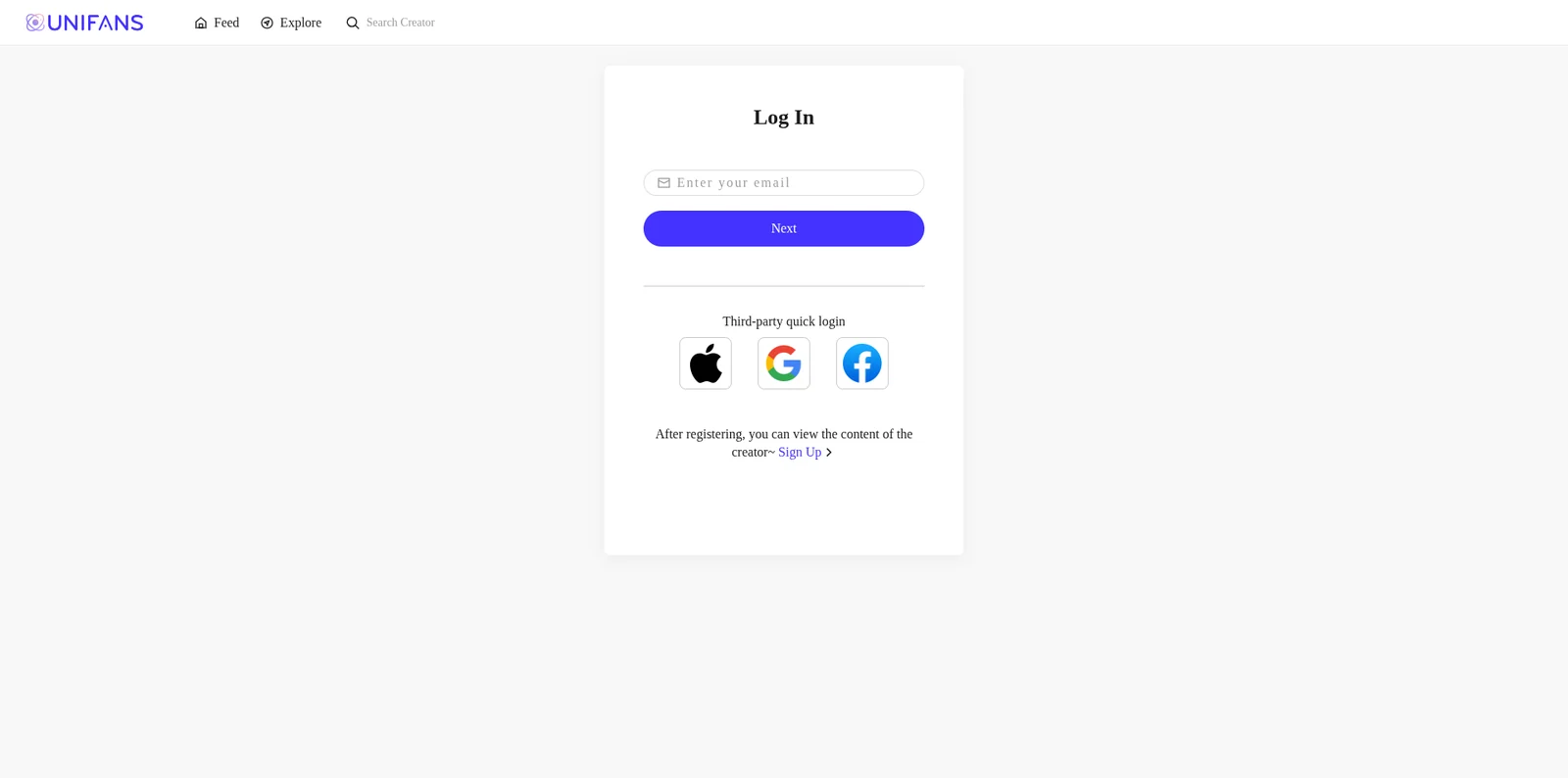
- Go to app.unifans.io and press Sign Up, or use the Apple, Google or Facebook buttons.
- Confirm your email if asked.
You don't need to use the same email or name as on HTranslations: the link between the two accounts is made in step 4.
Step 2: Get UniFans coins
UniFans works with its own coins: you top up a UniFans balance first, then spend it on our page. Get at least 50, the minimum for a top-up.
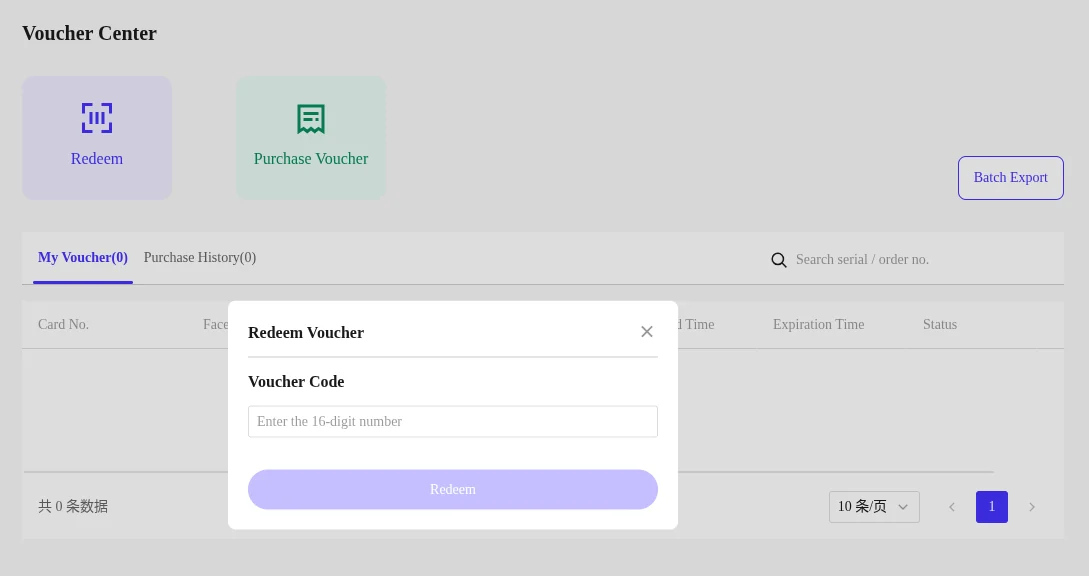
Press Recharge at the top right of UniFans. The Buy Coins page shows your Account Balance, a Purchase History button, a Voucher Center button and a Redeem Voucher box.

With a card or PayPal: a voucher from AppTopUp
UniFans sells card and PayPal top-ups as voucher codes through its official reseller, AppTopUp.
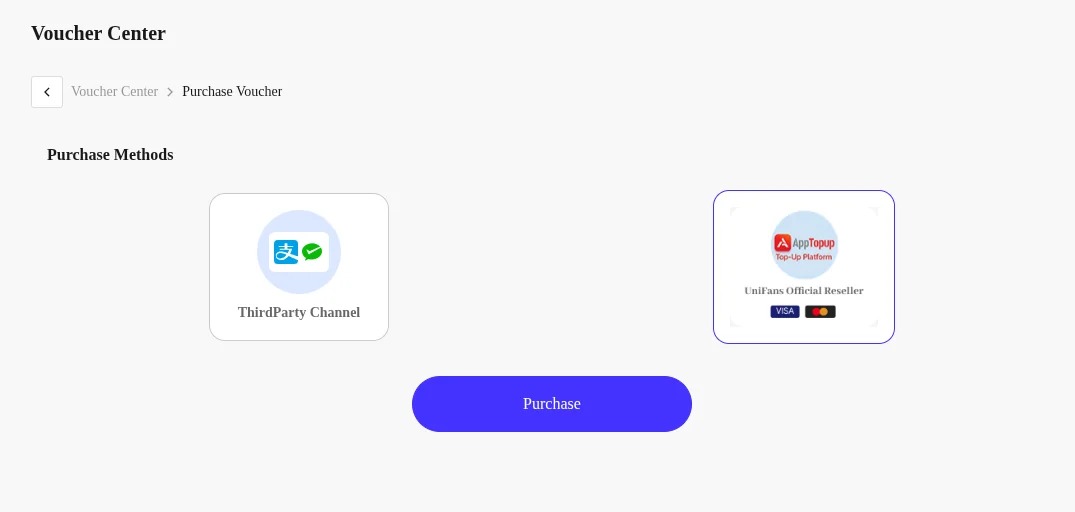
- Open the UniFans coins page on AppTopUp. You can also get there from UniFans: Voucher Center, then Purchase Voucher, then pick AppTopup (UniFans Official Reseller) and press Purchase.
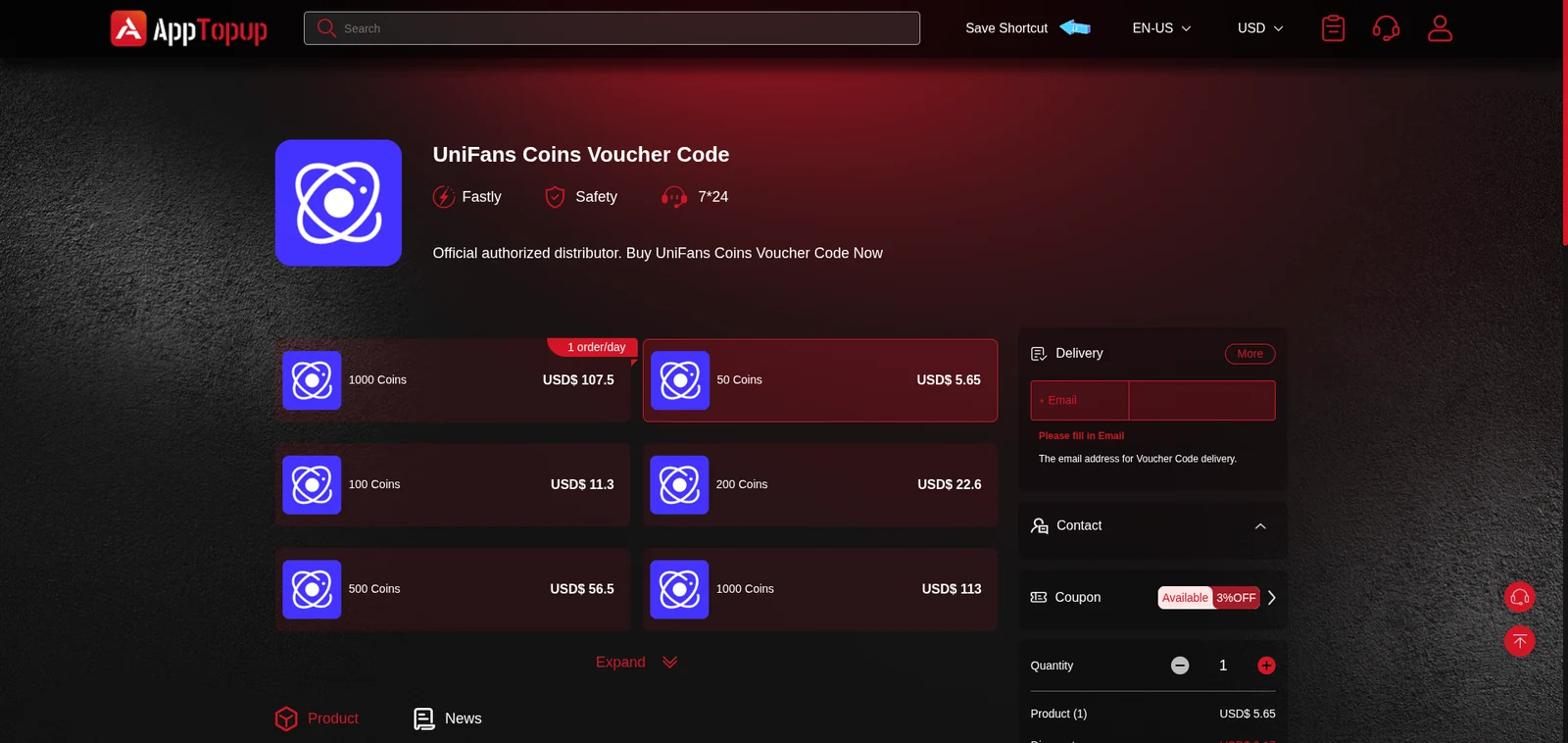
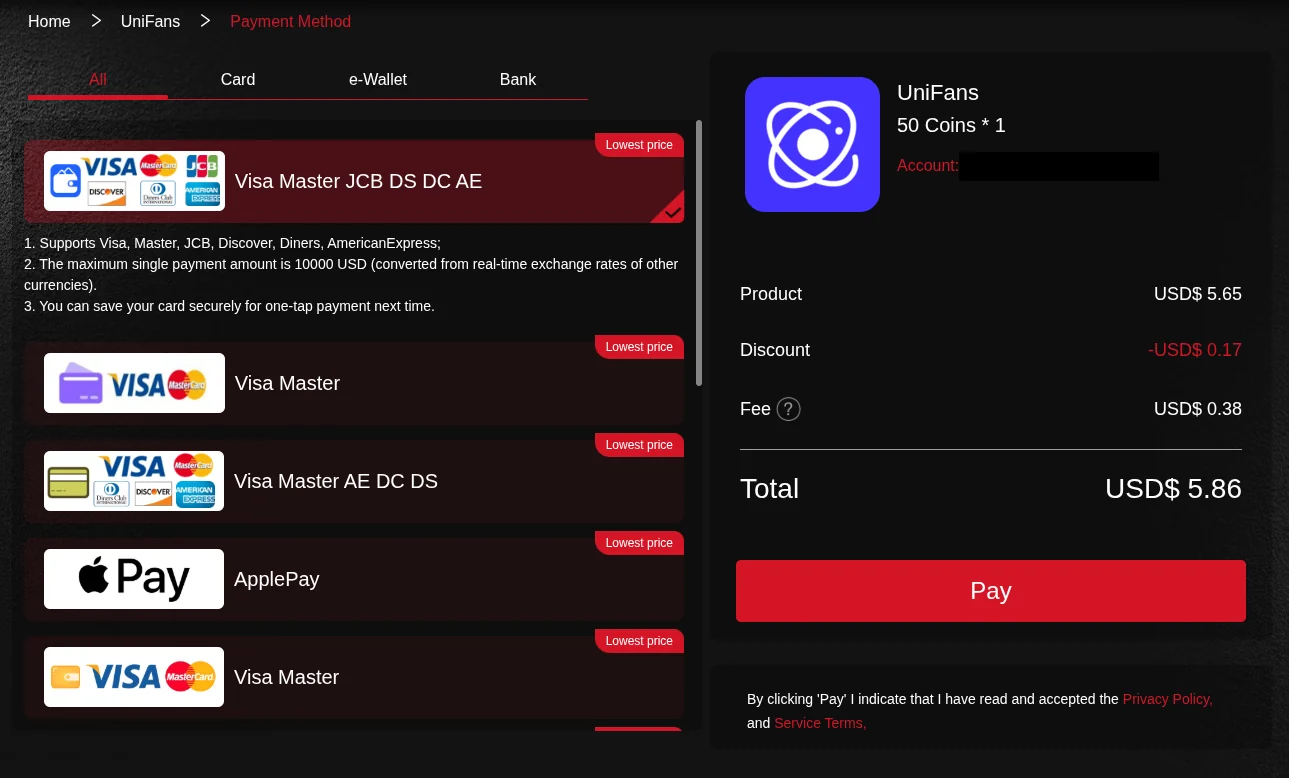
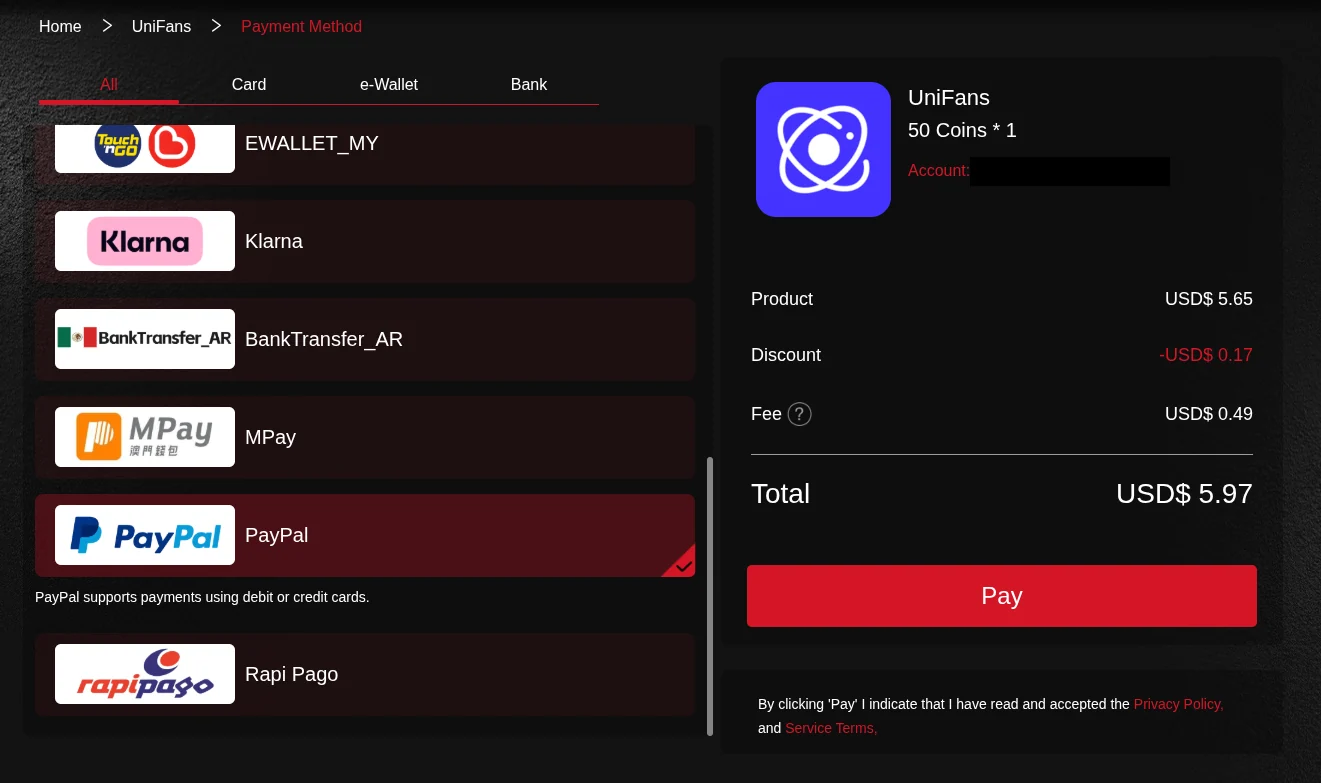
- Pick an amount (50, 100, 200, 500 or 1,000 UniFans coins), type the email the code should go to, and pick a payment method: cards (Visa, Mastercard, JCB, Discover, Diners, American Express), Apple Pay, PayPal, Klarna and many local options. The checkout adds a small payment fee; for 50 UniFans coins the total was about $5.86 by card or $5.97 by PayPal when we wrote this.
- The 16-digit voucher code arrives by email.
- On UniFans, type the code into the Redeem Voucher box on the Buy Coins page (or Voucher Center, then Redeem) and press Redeem. The coins land in your UniFans balance right away.
With crypto, UnionPay, Alipay or WeChat: Recharge
On the Recharge page, pick an amount and a payment method. Crypto top-ups (USDT or USDC) can take a while to show up on UniFans, sometimes a few hours, because UniFans checks them on its side.
Step 3: Unlock our top-up post
- On our Support Us page, scroll to One-time coins and open the Card & PayPal tab (it's selected by default).
- Press Open HTranslations Coin Topup #…. This opens one of our top-up posts on UniFans.
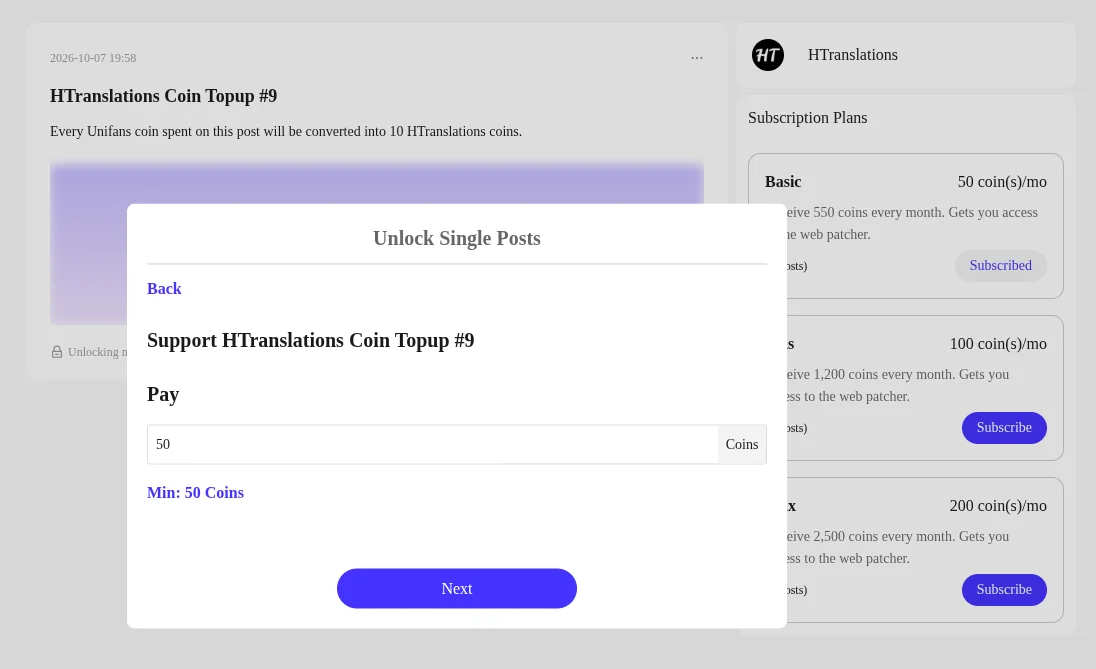
- On the post, press Support now to unlock the post.
- In the Unlock Single Posts box, type how many UniFans coins you want to pay in Pay (50 or more), press Next and confirm.
Why are there several top-up posts? UniFans only lets you unlock each post once. We have a series of identical posts (#1, #2, #3…), and our Support page always sends you to one you haven't bought yet. So for your next top-up, just come back to the Support page and press the button again: it will point to the next post.
Step 4: Link your UniFans account (first time only)
We need to know which HTranslations account your UniFans purchases belong to. You do this once, with the Trans No. (transaction number) of any of your purchases from our page.
- On UniFans, open Purchase History (it opens Billing History).
- Find the line Unlock Single Posts - HTranslations : HTranslations Coin Topup #….
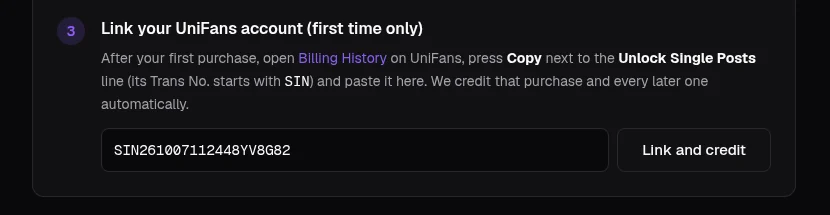
- Press Copy at the end of that line. This copies its Trans No., which starts with SIN (for example
SIN261007112448YV8G82). - On our Support Us page, in the Card & PayPal tab, paste it into the box under Link your UniFans account and press Link and credit.

You'll see "Linked … and credited … coins", and the coins are on your account. The Support page now shows your UniFans name under Coins arrive automatically, plus a list of your UniFans purchases.
Copy the right line. Billing History also lists your UniFans balance top-ups (Recharge, Trans No. starting with REC) and vouchers. Those are payments to UniFans, not to us, so they can't be linked. Copy the Unlock Single Posts line (or a Subscription Plans line, see below).
From then on: automatic
Every purchase from our UniFans page after the link is credited on its own, usually within 2 to 3 minutes. Nothing to paste again. Just unlock the post the Support page points you to.
You can link more than one UniFans account to your HTranslations account: paste a Trans No. from the other account the same way.
Monthly plans
Our monthly plans are on UniFans too. Each one gives coins every month and access to the web patcher.
| UniFans plan | Price | Coins every month | Web patcher |
|---|---|---|---|
| Basic | $5 / month (50 UniFans coins) | 550 | Yes |
| Plus | $10 / month (100 UniFans coins) | 1,200 | Yes |
| Max | $20 / month (200 UniFans coins) | 2,500 | Yes |
- On our Support Us page, under Monthly support, press Subscribe on UniFans (or open our UniFans page directly).
- Under Subscription Plans, press Subscribe on the plan you want and confirm. The monthly fee is taken from your UniFans balance, so keep enough UniFans coins on it each month.
- If your UniFans account isn't linked yet, link it as in step 4, using the Subscription Plans line in Billing History (its Trans No. starts with SUB).
Each month's payment credits that month's coins and keeps the web patcher active. If a payment doesn't go through, access ends about a month after the last one. You can see your plan in Settings → Subscription on HTranslations, and manage or cancel it on UniFans.
Already subscribed with a card on HTranslations?
Your card plan keeps renewing as before; you don't have to do anything. If you want to move to UniFans:
- Subscribe to any plan on UniFans and link it (step 4 above).
- We automatically set your card plan to end with the period you already paid for. It won't renew, so you never pay for the same month twice, and you keep your coins and patcher access the whole time.
Troubleshooting
"We haven't seen that purchase yet"
New purchases take a few minutes to reach us. Wait two or three minutes and paste the Trans No. again. Make sure it's a purchase from our UniFans page: unlocking another creator's post won't work.
"That's your UniFans wallet top-up"
You copied a Recharge line (Trans No. starting with REC). Copy the Unlock Single Posts line instead (starting with SIN).
"That UniFans account is already linked to another HTranslations account"
Each UniFans account can belong to only one HTranslations account. If you have two HTranslations accounts, the purchases went to the one you linked first. If you didn't link it yourself, contact us.
The button says I've used every top-up post
You've unlocked every top-up post we have. We add more regularly; contact us if you need one right away.
My UniFans crypto top-up hasn't arrived
That's between you and UniFans: crypto top-ups to your UniFans balance are confirmed by UniFans and can take a few hours. Once the UniFans coins are in your balance, continue from step 3.
My coins didn't arrive after a purchase
If your UniFans account is linked and nothing shows up after 10 minutes, check that the purchase is in your UniFans Billing History, then contact us with its Trans No.
FAQ
Why UniFans?
Card processors are increasingly unwilling to work with sites like ours. UniFans handles the cards, PayPal and local payment methods, so you can keep paying the way you're used to.
What do you see about my UniFans account?
Only what any creator sees: your UniFans nickname and username, and the purchases you make on our page (date, amount, what was bought). We never see your card, PayPal or other payment details.
Can I pay a custom amount?
Yes. The top-up posts are pay what you want from 50 UniFans coins. Every UniFans coin you pay becomes 10 HTranslations coins.